 SBR - SB RemoteSanary Dev · Sanary Build Remote
SUPPORT
SBR - SB Remote Support
Connect, understand your status display, and find help when you need it.
01 / ABOUT
About SBR
SBR - SB Remote (Sanary Build Remote) is a viewer for your Sanary Build environment. It shows Workspace, Agent, Judge, and SBG connection status. On iPhone, it also displays compatible SBB status and System Metrics.
SBR does not run, instruct, stop, or approve Agents, or perform Judge evaluations. IDE Focus on Mac only brings the corresponding IDE app to the front.
This guide covers SBR 1.0 Build 10. The SBR app targets iOS 18.6 or later and macOS 14.0 or later. For the requirements of SBB and its Judge feature, see SBB requirements.
02 / IPHONE
Connect your iPhone
- Start Sanary Build Bridge (SBB) on your Mac and check that SBG is running.
- Enable Remote Access in SBB settings on the Mac. It is off by default.
- Connect your iPhone and Mac to the same local area network (LAN).
- Open the connection screen in SBR on iPhone. Allow local network access when prompted.
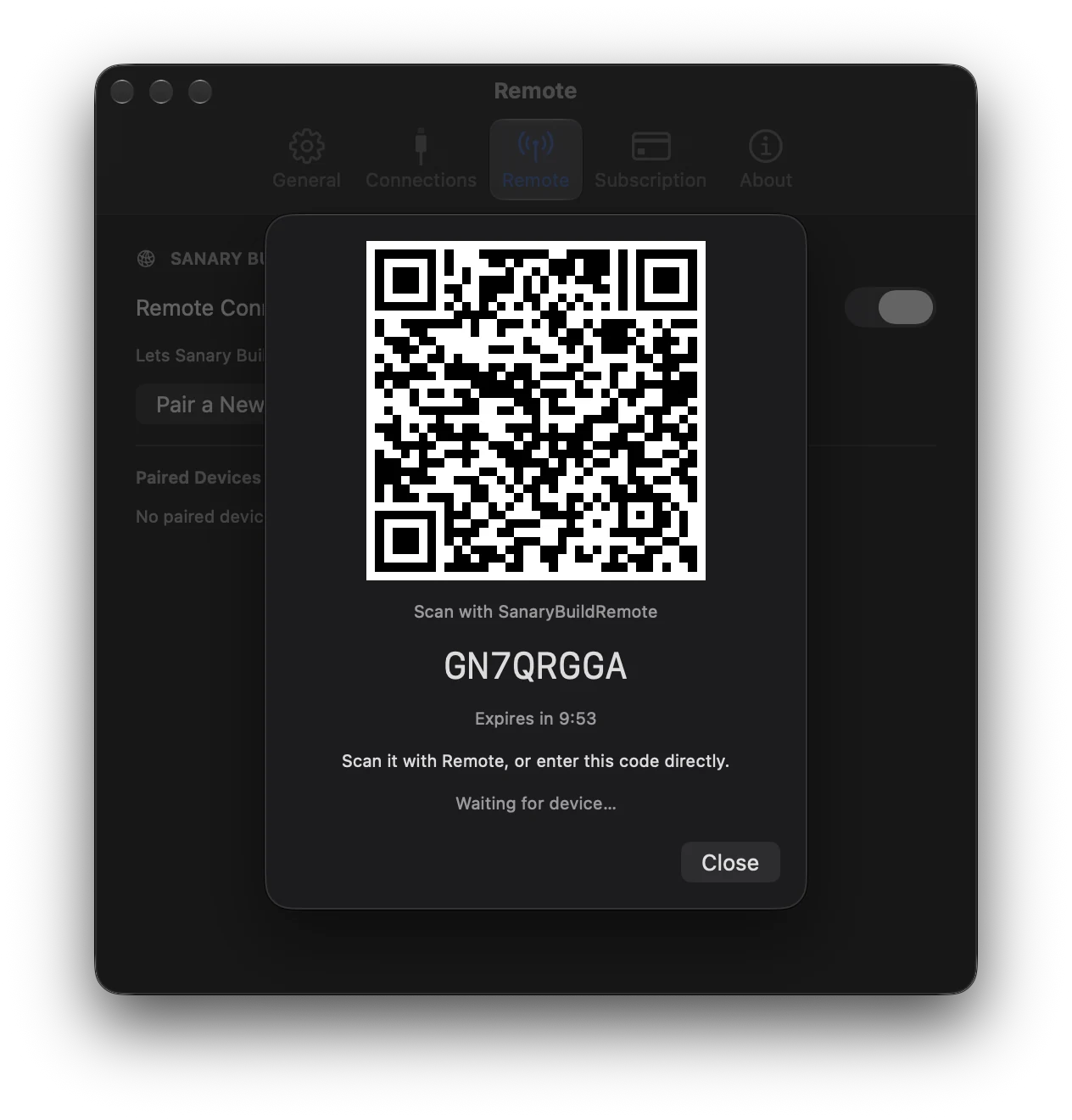
- Start pairing a new device in SBB on the Mac, then scan its QR code in SBR. For manual entry, enter the eight-character code and the connection address shown on the Mac.
- When SBR is waiting for approval, check the requesting device on your Mac and approve it.
- The status screen appears once the connection is established.
Allow camera access when scanning a QR code. If your Mac appears under Nearby Gateways, you can select the address discovered through Bonjour. A pairing code and approval on the Mac are still required.
Pairing codes expire. Generate a new code on your Mac if the previous one has expired. When saved pairing credentials are usable, SBR reconnects without asking you to enter the code again.
03 / MAC
Use SBR on Mac
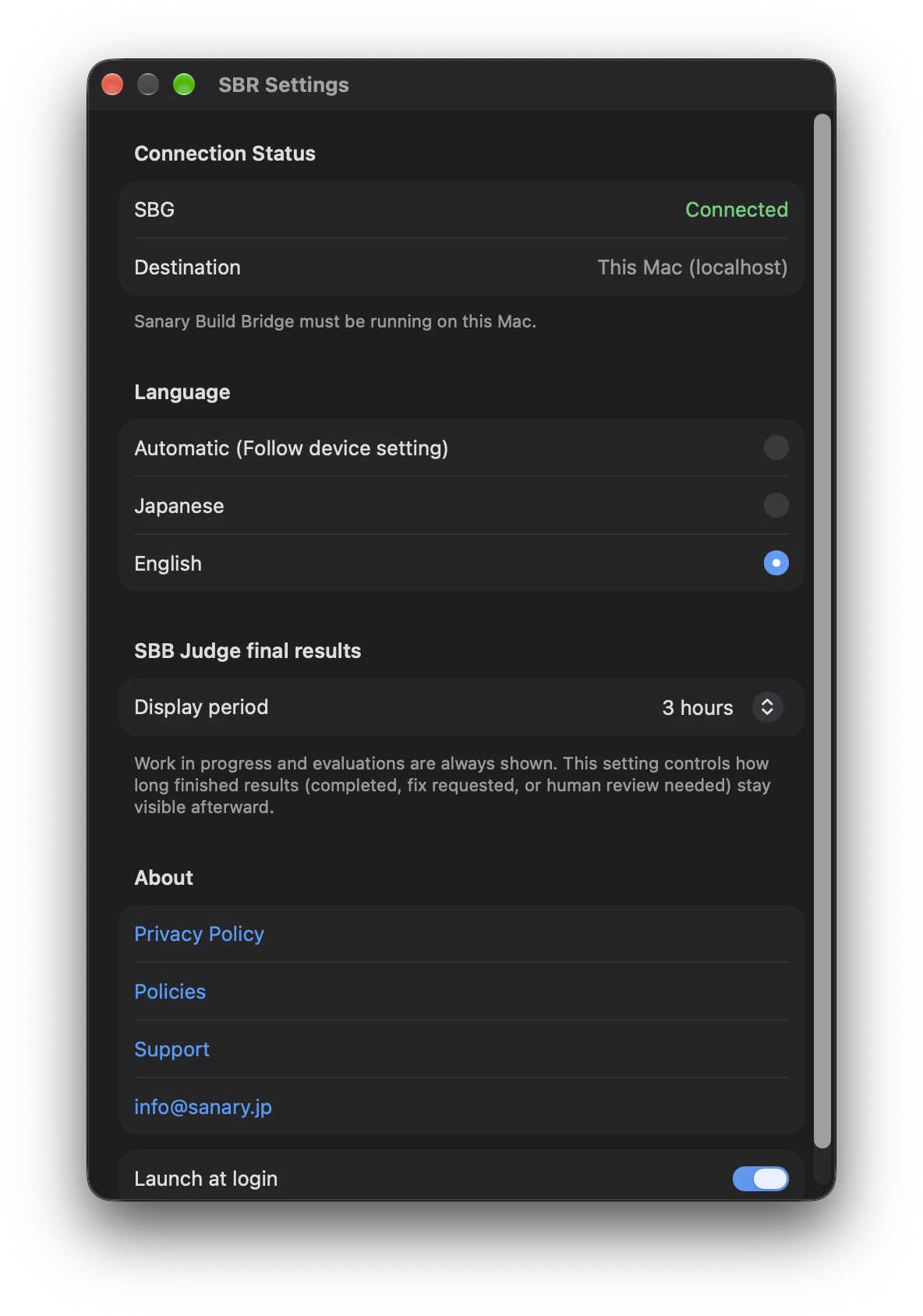
Start SBB/SBG on the same Mac and open SBR. Use its menu bar panel to view Workspace, Agent, and Judge status. The destination is fixed to http://127.0.0.1:8790 (localhost).
No pairing or Remote Access enablement is needed for the Mac version. There is no setting to connect to another Mac.
IDE Focus
Click a supported card to launch or bring Xcode or the standard version of VS Code to the front. This does not select a specific window for a specific workspace. With multiple windows open, the IDE determines which one comes forward.
You can enable Launch at login in SBR settings. See Settings.
04 / DISPLAY
Understanding the display
- Workspace
- Cards show workspaces in your development environment. Content depends on the connected tools and the status data they supply.
- Agent
- Shows states such as working or waiting, separately from workspace status and Judge results.
- Judge
- Shows evaluation in progress, completed, fix requested, or human review needed as received from SBB. Each card displays the latest eligible result, not a history of every session.
- SBG
- Shows connection status. Normal status polling occurs about every five seconds. Sample View does not indicate a live connection.
- SBB · iPhone
- Select SBB in the header to view received status such as whether SBB is running and accepting evaluations. This detail header is not shown on Mac.
- System Metrics · iPhone
- Shows CPU, MEM, and N/W supplied by SBM. Readings appear when compatible data reaches SBG and is available for exactly one host. SBR does not take measurements. This metrics display is not shown on Mac.
- Stale status
- The last received readings may remain visible when data is old or the connection is unavailable. Metrics turn gray and should not be treated as current measurements.
The Judge display period controls how long final results remain on screen. It is not a history retention period or a persistent history viewer.
05 / SAMPLE VIEW
Sample View
Preview the screen using fixed Sample Data before connecting to a Mac. The sample data source does not connect to a real Mac or change saved pairing credentials. Sample cards do not activate IDE Focus.
- iPhone: choose View Sample on the unpaired connection screen.
- Mac: View Sample is offered when SBG is unreachable and no status refresh has succeeded yet.
- Choose Exit Sample to return. Sample Data and the actual connection status are separate.
06 / SETTINGS
Settings
App Language
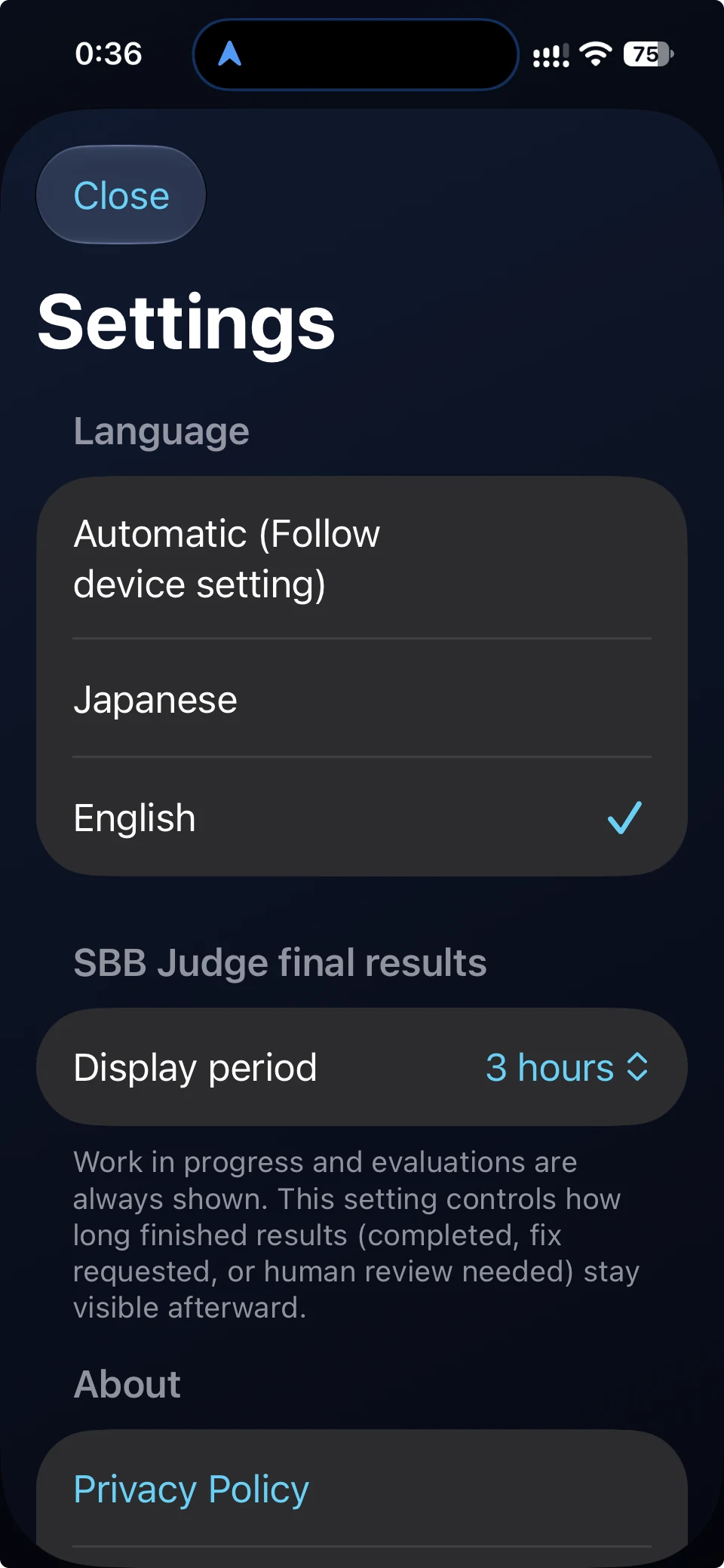
Choose Automatic (follow device setting), Japanese, or English. This does not translate free-form text supplied by other tools.
Judge display period
Choose 30 minutes, 1, 2, 3, or 6 hours, or the current day. The default is 3 hours. The current-day option ends with the receipt calendar day, not after 24 hours. This setting does not time out work or evaluations still in progress.
Sort
Use the sort control on the status board to order cards by update time, name, or state. Update time is the default. This changes the display order only.
Keep Screen On · iPhone
Toggle the sun icon on the status screen. When enabled, it prevents auto-lock while SBR is active in the foreground and showing the live status screen or Sample View. It does not apply to pairing or background use. This is not an iPad or Mac feature and does not change the device’s Auto-Lock setting.
Launch at Login · Mac
Toggle Launch at login in SBR settings. If macOS requires approval, check Login Items in System Settings.
07 / TROUBLESHOOTING
Troubleshooting
My iPhone cannot find my Mac
Check that both devices are on the same LAN, SBB/SBG is running on the Mac, and Remote Access is on. Check that SBR has local network permission in iPhone settings. If the Mac is absent from Nearby Gateways, you can still pair using the QR code or connection address shown on the Mac.
Scanning the QR does not connect
Check code expiry, pending approval on the Mac, Remote Access, and the same-LAN connection. If the code has expired, generate and scan a fresh code on the Mac. If scanning itself fails, check camera permission or use manual entry.
Remote Access is off
Enable Remote Access in SBB on the Mac. Remote Access being off is separate from invalid device credentials, so it alone does not require pairing again.
SBR asks me to pair again
If the saved device credential is no longer accepted, follow the re-pairing prompt, start a new pairing on the Mac, and approve it. If the network is only temporarily unreachable, check the connection first.
The Mac version cannot connect
Check that SBB/SBG is running on this same Mac. The Mac version always uses localhost. iPhone pairing and Remote Access settings do not resolve its local connection.
SBM readings are missing
Metrics on iPhone appear only when compatible System Metrics reach SBG. Check that SBM is running on the Mac and supplying data to SBG. The current display supports one host; it hides metrics when there are no hosts or multiple hosts. The Mac version does not show these metrics.
Readings are old or gray
This indicates stale information or an unavailable connection. The values are not current measurements. Check the Mac and network connection, then check whether new status can be retrieved.
IDE Focus opens a different window
IDE Focus brings the Xcode or VS Code app to the front. It does not guarantee a specific workspace window; choose that window in the IDE itself.
08 / FAQ
FAQ
Can I use SBR away from home or over cellular?
Not in the standard setup. The iPhone version requires the same LAN as your Mac.
Does the Mac version need pairing?
No. It connects to localhost on the same Mac. Remote Access does not need to be enabled either.
Can I control Agents from SBR?
No. SBR is a viewer. It does not instruct, stop, or approve Agents.
Does Sample View connect to a real Mac?
The sample data source does not connect to a real Mac. It displays fixed data and leaves pairing credentials unchanged.
Why do Judge results disappear?
Final results are displayed according to the configured display period. A card shows its latest eligible result, so a newer result can also replace an earlier one. SBR is not a persistent history store or viewer.
Can Japanese text appear when English is selected?
Yes. Known UI and supported status codes are displayed in Japanese or English, but free-form text or unknown states from the source may be shown in their original form.
09 / PRIVACY & COMMUNICATION
Privacy and communication
The iPhone version connects to a Mac on the same LAN. The Mac version connects to localhost on the same Mac. SBR does not use an external relay to retrieve status.
LAN communication uses HTTP without TLS encryption. Remote Access is off by default. Even when enabled, status access requires credentials for a device approved on the Mac.
10 / CONTACT
Contact
If the issue persists, include your device, SBR version, connection method, and the message shown on screen when contacting us.